
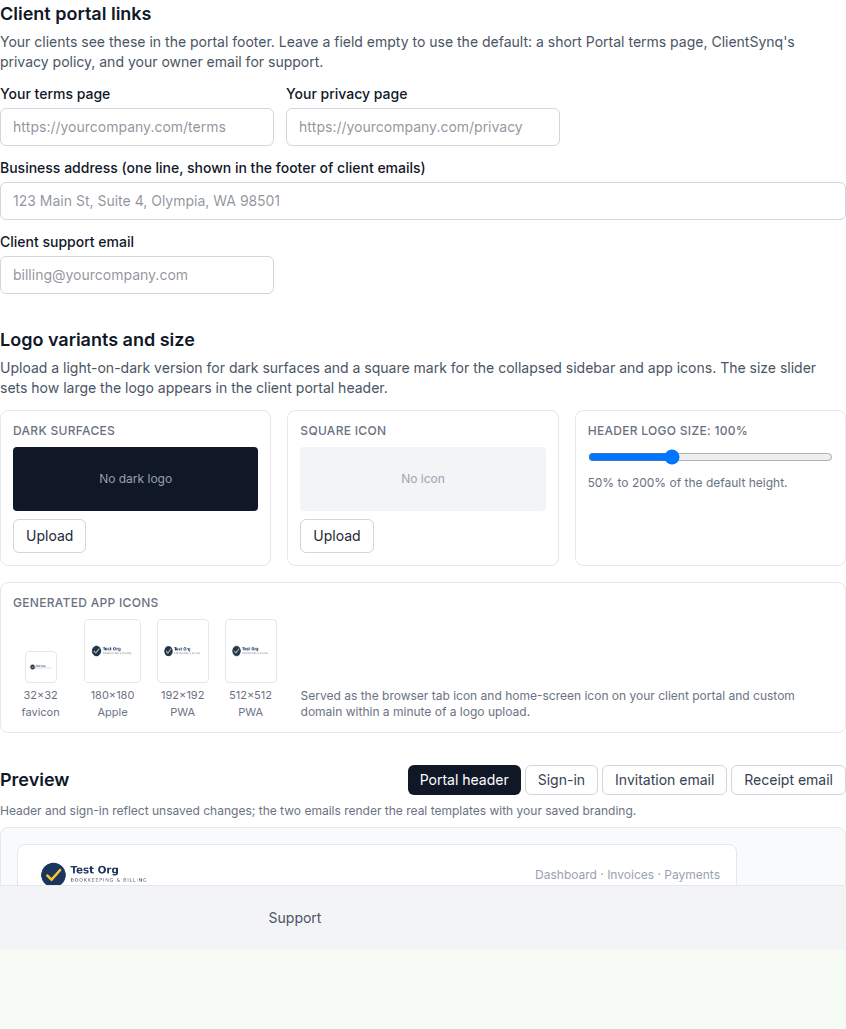
The client portal footer has Terms, Privacy and Support links. You can point them at your own pages and support address, and add your business address to the emails your clients get.
Before you start
- Client portal links are part of the Pro or Enterprise plan.
- You need the Manage Branding permission (Roles page, Settings group). The owner always has it.
Steps
- Open Settings (under your name, bottom left of the sidebar), then Brand.
- Find Client portal links and fill in the fields you want:
- Your terms page: the full address of your terms, starting with
https://orhttp://. - Your privacy page: the full address of your privacy policy, starting with
https://orhttp://. - Business address (one line, shown in the footer of client emails): up to 200 characters.
- Client support email: where clients should write with questions.
- Your terms page: the full address of your terms, starting with
- Click Save Brand Settings at the bottom of the page.
What your clients see
| Field | When filled in | When left empty |
|---|---|---|
| Your terms page | The footer shows Terms, which opens your page in a new tab. | The footer shows Portal terms, a short page ClientSynq provides. |
| Your privacy page | Privacy opens your page in a new tab. | Privacy opens ClientSynq's privacy policy. |
| Client support email | Support opens an email to this address. | Support opens an email to the owner's email address. |
| Business address | Emails to clients end with your company name and this address. | No address line. |
The Portal terms page shows your logo and says that the portal is operated by your business using ClientSynq, that questions about invoices and payments go to you (with your client support email, or the owner's email), and that card and bank payments are processed by QuickBooks Payments. It has a Back to portal link.
Screenshot to come: Portal terms page as a client sees itpublic/help/branding/client-portal-links-2.png
Good to know
- The business address appears in client invitations, payment receipts, File Exchange emails and bank transfer failure notices.
- The footer's left side shows your logo, or your company name if you have no logo.
- To check the footer before clients see it, open the Portal header tab in the Preview on the same page.