Use the Contact Support page to send a question or report a problem to the ClientSynq team. You get a reference number right away, and the reply comes by email.
Before you start
- Sign in first if you can. When you are signed in, ClientSynq attaches your organization and plan to the request and replies to the verified email address on your account.
- Have the details ready: what you were doing, the page you were on, and any message you saw.
Steps
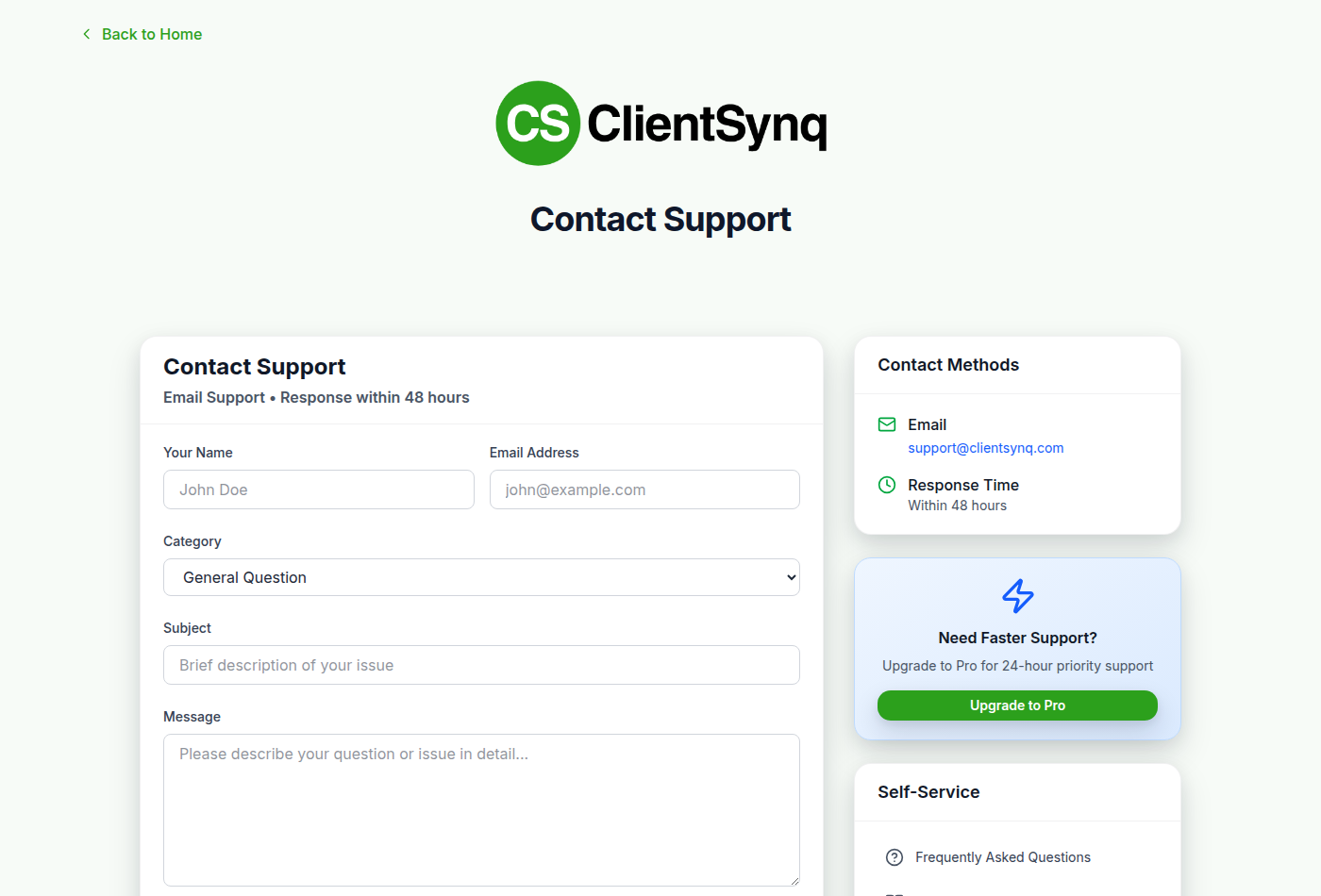
- Open Contact Support. You can reach it from the Help button in the lower-right corner of any page, or from Support in the page footer.
- Fill in Your Name and Email Address.
- Choose a Category: General Question, Technical Issue, Billing & Account, QuickBooks Connection, Payment Processing or Feature Request.
- Enter a Subject and describe the problem in Message.
- Select Send Message.
What happens next
- The page shows Message Sent! with a reference number.
- You get a confirmation email with the subject "Support Request Received:" followed by your subject. It repeats the reference number.
- Replies come by email from ClientSynq Support and include the reference number in the subject. Reply to that email to continue the conversation.
Response targets
| Plan | Target |
|---|---|
| Basic | Within 48 hours |
| Pro | Within 24 hours (priority support) |
| Enterprise | Within 4 hours |
When you are signed in, the top of the form shows the target for your organization's plan, with a Priority Support or Enterprise Support badge on Pro and Enterprise. The confirmation email states the same target. Requests sent while signed out use the Basic target.
Good to know
- You can also email hello@clientsynq.com directly. It is listed under Contact Methods on the page.
- If the form stays on screen after you select Send Message, your request was not sent. Wait a while and try again, or email hello@clientsynq.com.
- To ask about the Enterprise plan, use Contact Us on the Enterprise card in Billing & Plans. See Plans and trials.