
Your clients can pay their open invoices in your portal by card or by bank transfer (ACH). The money is processed by QuickBooks Payments, using your own QuickBooks Payments account. ClientSynq does not process payments itself.
Before you start
- Available on every plan, including Basic. Card and ACH are both included.
- You need an active QuickBooks Payments account for the connected QuickBooks company. Intuit sets the processing fees, and they are charged to your QuickBooks Payments account.
- QuickBooks must be connected. See Connect QuickBooks.
- The Enable QuickBooks Payments button is in the QuickBooks Online card on Settings → QuickBooks connection and sync, which appears for the Owner and Administrator roles and for roles with Manage Integrations or Sync QuickBooks.
- Enabling payments disconnects and reconnects QuickBooks, so you must be the owner, have the Administrator role, or have a role with Manage Integrations (Roles page, Settings group). Anyone else sees "Failed: Only an owner or administrator can change the QuickBooks connection".
- Client Payment Settings needs the Edit Settings permission.
Step 1: Give ClientSynq access to QuickBooks Payments
- Open Settings (the identity block at the bottom left of the sidebar), then QuickBooks connection and sync.
- In the QuickBooks Online card, click Enable QuickBooks Payments. Next to it the card says "You must have a current QuickBooks Payments account".
- Confirm "This will disconnect QuickBooks so you can reconnect with payment permissions. Continue?"
- The page reloads with the status Not Connected. Click Connect to QuickBooks.
- Sign in to Intuit, choose the same company and approve access. This time Intuit also asks for QuickBooks Payments access.
- You return to the Dashboard. The Enable QuickBooks Payments button no longer appears.

Step 2: Choose payment methods
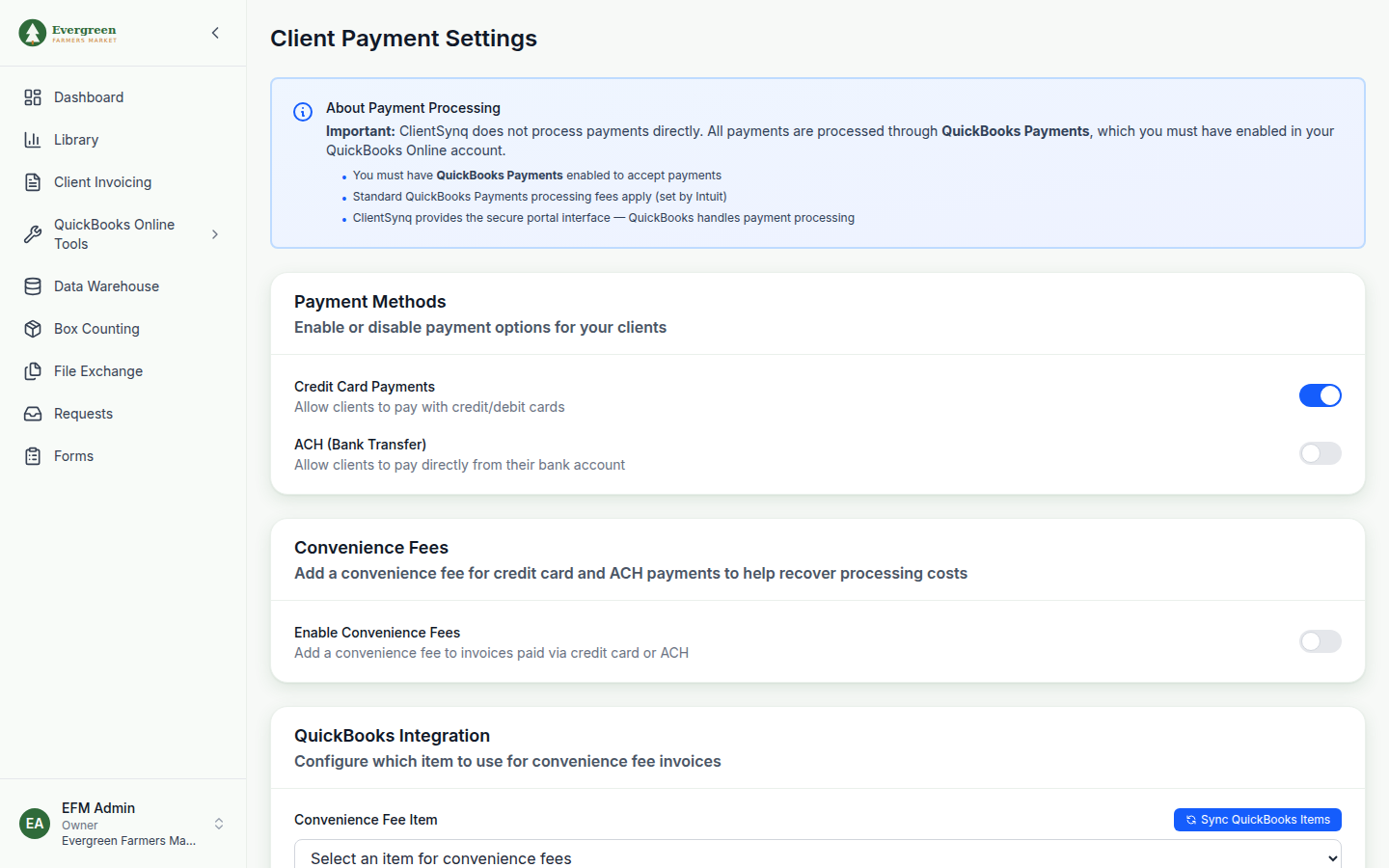
- Open Settings (under your name, bottom left of the sidebar), then Client Payment Settings.
- Under Payment Methods, turn on the methods you want:
- Credit Card Payments lets clients pay with a credit or debit card. It is on when you first open the page.
- ACH (Bank Transfer) lets clients pay from a bank account. It is off when you first open the page.
- Click Save Settings. "Settings saved successfully!" appears and you return to the Dashboard.
What happens next
- Clients see a Pay column on unpaid invoices and can pay several at once. See What your clients see when they pay.
- Each payment is recorded in QuickBooks as a payment against the invoices it covers.
- Card payments are complete right away. Bank transfers stay pending until the bank clears them, usually 3 to 5 business days. ClientSynq checks pending bank transfers once a day.
- If a bank transfer fails, ClientSynq removes the payment it recorded in QuickBooks, so the invoice shows as open again, and emails the organization owner and the client.
- If ClientSynq cannot record a payment in QuickBooks right away, it retries every hour, up to five times, and emails the organization owner each time it fails.
Good to know
- Payouts, deposits and processing fees are handled in QuickBooks Payments, not in ClientSynq.
- Clients cannot save a card or bank account for later.
- On Pro and Enterprise you can add a convenience fee to client payments. See Charge convenience fees.