
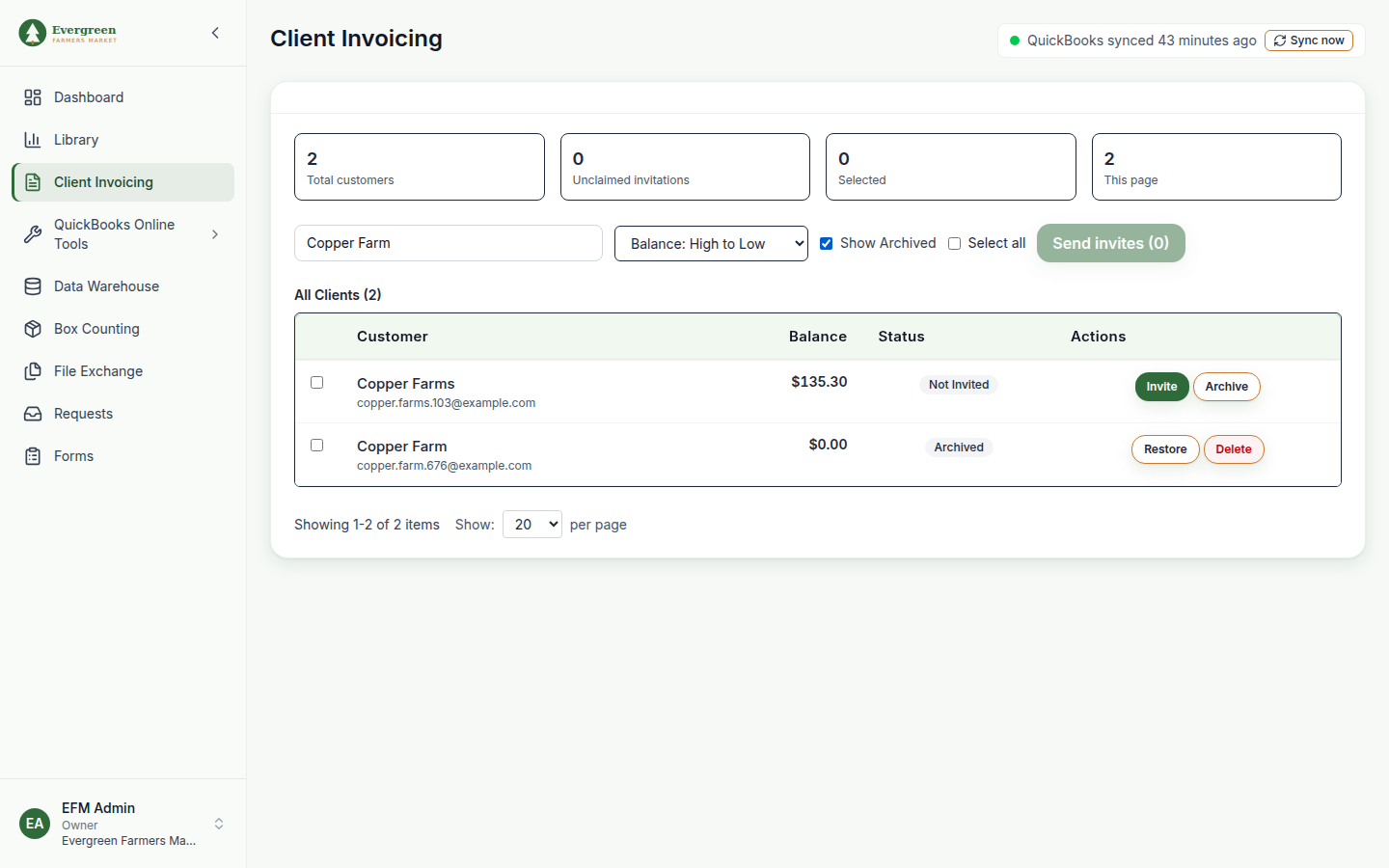
You manage each client's portal access from the row's buttons on the Client Invoicing page. None of these actions change the customer in QuickBooks.
Before you start
- Available on every plan.
- Suspend, Archive, Reactivate, Restore and Reset login need the Owner or Administrator role. Other team members see the buttons, but the action is refused.
- Delete is for the organization's owner only. Administrators cannot delete clients.
Which action to use
| Action | Shown for | What it does |
|---|---|---|
| Suspend | Has Account | Blocks portal access right away. Data, history and QuickBooks sync stay as they are. |
| Archive | Not Invited, Invited, Has Account | Hides the customer from the list and removes portal access. Invoices and payments stay. |
| Reactivate | Suspended | Restores portal access. |
| Restore | Archived | Brings the customer back to the list and restores access. |
| Reset login | Has Account | Unlinks the client's current login, cancels any pending invitation and sends a fresh invitation to the email in QuickBooks. |
| Delete | Archived | Permanently removes the customer and its history from ClientSynq. |
Suspend or archive a client
- Open Client Invoicing.
- In the client's row, click Suspend or Archive.
- Read the confirmation, which lists what will happen, and click OK.
- The status changes to Suspended or Archived.
To see archived customers again, tick Show Archived above the table.
Reactivate or restore a client
- For an archived client, tick Show Archived first.
- In the row, click Reactivate (suspended) or Restore (archived).
- Confirm. The client can sign in again.
Reset a client's login
Use this when a client can no longer get into the email address or password they signed up with, and the customer's email in QuickBooks is now correct.
- Update the customer's email in QuickBooks, then click Sync now in the QuickBooks status strip.
- In the client's row, click Reset login.
- Confirm. The message "Login reset and invite sent to email" appears, and the client receives a new invitation.
If the customer has no email in QuickBooks, ClientSynq asks you to add one and sync first.
Delete a client permanently
- Archive the client first. Delete only appears on archived rows.
- Tick Show Archived, then click Delete in the row.
- Type
DELETEexactly in the box and click OK. Anything else cancels with "Deletion cancelled - you must type "DELETE" exactly". - A message confirms how many invoices and invoice payments were removed.
Good to know
- Delete removes the customer's invoices and payment links, file shares, invitations and portal access from ClientSynq. It cannot be undone.
- Delete does not touch QuickBooks. If the customer is still active in QuickBooks, it comes back as Not Invited after the next sync.
- A suspended or archived client who signs in is told their portal access has been suspended or archived and to contact your organization.
- To stop an invitation that has not been accepted yet, use Cancel instead. See Invite clients to your portal.